Trading

Trading pokemon & items with other players is possible from the moment you start your journey.
The following things are important to note however:

(extra warning in in-game chat when trying to trade with alts)
How to trade
First things first, how do you start & make a trade outside of the trade house:
A. As mentioned before, both parties have to be on the same map.
B. Both parties have to send a trade request in one of the following ways:
Click the other player's sprite & choose trade on the wheel that pops up:
Type " /trade [username] " + enter (send) in in-game chat.
When both parties did this, the trade screen will open:
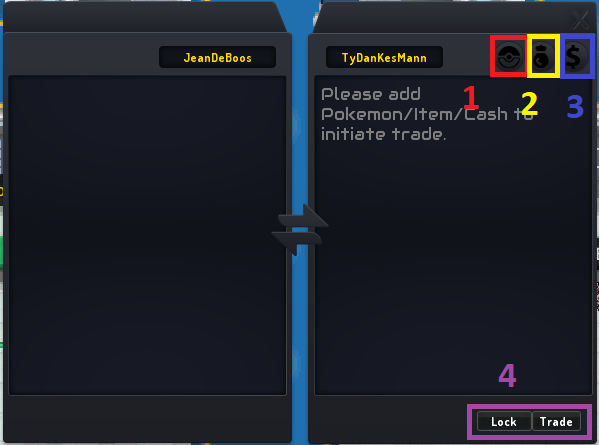
The list gets updated in real time when each player is adding their stuff they want to trade.
1. Add Pokemon
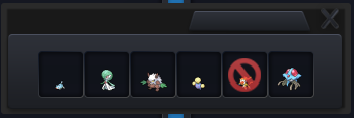
This pop up comes when wanting to add pokemon.
Just choose whichever pokemon you want to trade, the info of the pokemon can be seen while adding pokemon by hovering over them. After being added, the info is visible for both parties (always double check if you are receiving the correct pokemon you wanted to buy!).
Pokemon not able to be traded will have the red icon (as visible on the infernape).
Reason of it not being able to be traded will be shown by hovering over the pokemon. Reasons can be:
Note: Only pokemon in your party can be traded.
Note: The add pokemon option won't be available if the other player has a full party (or too few spots open for the amount of pokemon you want to trade)
2. Add Items
The UI pop up for items to be added in the trade list:

Underneath the opened scrollable drop down menu, there's a box to adjust amount (standard takes max available).
Even though listed in the dropdown menu, currency like Blaze Coins, Crew War Tokens etc etc, cannot be traded. Nor key items like bicycle, running shoes, ...
Event currency like Soul Shards can be traded (!! Make sure you arent receiving event currency from earlier editions, these won't be usable in the shop of the current event !!).
Only items on hand can be traded. Items in Trade House listings, on pokemon (either in team or in pokebox) & in Crew Bank won't be shown in the list and thus won't be able to be traded.
3. Add Cash
Evidently I mean in-game money. Real money trade is strictly forbidden as stated in the game rules!
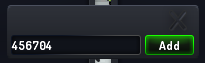
Again standard sets to max available. Only cash you have on hand can be traded. Cash in ATM or Crew Bank will not be included.
4. Concluding the trade
Once you are done adding items, you click the 'Lock' button:
Once both parties have clicked the 'Lock' button, the 'Trade' button becomes available. Only click this if you have double checked all things in the trade. If you have made a mistake at this point or the other party has (either on accident or on purpose) you can still cancel the trade by clicking the X top right of the trade screen!
If after clicking the 'Trade' button, you see the following screen:
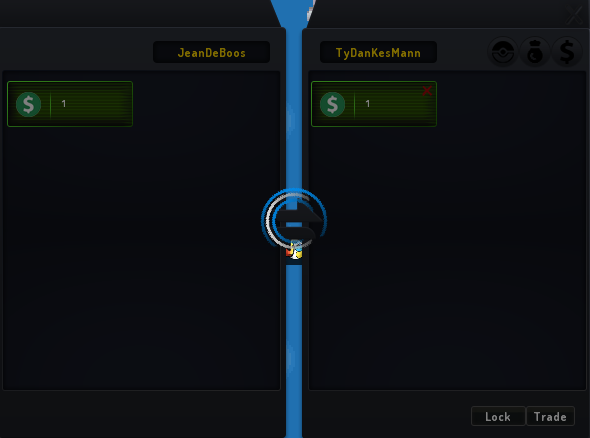
Don't panic and close the game, this means the other party hasn't yet clicked the 'Trade' button. Only when both parties clicked this button, the trade will happen. Gains & losses will be shown in the trade chat after successfully completing the trade:

The Level Cap
This game uses a level cap on trades based on the amount of badges you have from that region.
This means that if you have 5 badges in Sinnoh, you can buy Sinnoh region pokemon up to level 40 ( [ 7 * 5 ] + 5 = 40 ).
Once you are champion of a region, this level restriction is lifted from that region when inside that region. So then you can buy pokemon from that region of any level (including level 100).
Notice how I'm often specifying that region is important. This is because you cannot buy Jvaloh pokemon with a level higher than 5 while playing Sinnoh. Because you have 0 Jvaloh badges, the level cap is 5 ( [ 7 * 0 ] + 5 = 5 ). Jvaloh (and other later released regions than the one you are playing) pokemon also won't gain experience in Sinnoh (and other earlier released regions than the one you are playing).
So buying a later region pokemon is only good if:
The Region Cap
Not to be confused with the earlier level cap, the region cap is a level cap the game implements to avoid people using highlevel pokemon from previous regions to clear the new ones, while also keeping the possibility of using pokemon from previous region.
Many people confuse it with the level cap because of the similar calculation.
While strictly not having much to do about trading, wanted to list this here to stress the differences with the aforementioned level cap.
This means you can bring pokemon from Sinnoh to Jvaloh (example) from level 5 or less at start (example: resetted pokemon using the pokemon skills feature). These pokemon will gain experience in Jvaloh.
Once higher than this cap, the 'foreign' pokemon will have their level scaled down to this Region Level cap. To avoid this from happening, you can transfer up to 5 pokemon to any new region (in that region's laboratory).
Once you gain badges in Jvaloh, you will get a higher level cap, maxing out at 8 badges giving you a limit of up to level 85.
Note: The earlier mentioned trade cap for levels is still in effect. You won't be able to trade Sinnoh pokemon level 84 even with 8 Jvaloh badges as you have a level cap of [7*8]+5 = 61. You would have to go to Sinnoh, trade/buy it there & then go back to Jvaloh.
To try make it clear a last example:
Player is Sinnoh Champion & has 5 Jvaloh badges:
Trading pokemon & items with other players is possible from the moment you start your journey.
The following things are important to note however:
- The general trade rules on the rules page.
- Trading can only be done with other players on the same map as you.
- The Level Cap
- The Region Cap
- Trades can't be free. If you want to give gifts, the receiving party will still have to add 1 f (ingame money) or such.
(extra warning in in-game chat when trying to trade with alts)
How to trade
First things first, how do you start & make a trade outside of the trade house:
A. As mentioned before, both parties have to be on the same map.
[SYS] You cannot trade with players who are not on the same map.
B. Both parties have to send a trade request in one of the following ways:
Click the other player's sprite & choose trade on the wheel that pops up:
Type " /trade [username] " + enter (send) in in-game chat.
[SYS] Trade request was sent to [username].
When both parties did this, the trade screen will open:
The list gets updated in real time when each player is adding their stuff they want to trade.
- Add Pokemon
- Add Item
- Add Cash
- Concluding the trade
1. Add Pokemon
This pop up comes when wanting to add pokemon.
Just choose whichever pokemon you want to trade, the info of the pokemon can be seen while adding pokemon by hovering over them. After being added, the info is visible for both parties (always double check if you are receiving the correct pokemon you wanted to buy!).
Pokemon not able to be traded will have the red icon (as visible on the infernape).
Reason of it not being able to be traded will be shown by hovering over the pokemon. Reasons can be:
- Level Cap
- Region Cap
- Pokemon is banned from trading (example starters)
- Pokemon is holding an item (not needed for evolving)
Note: Only pokemon in your party can be traded.
Note: The add pokemon option won't be available if the other player has a full party (or too few spots open for the amount of pokemon you want to trade)
2. Add Items
The UI pop up for items to be added in the trade list:
Underneath the opened scrollable drop down menu, there's a box to adjust amount (standard takes max available).
Even though listed in the dropdown menu, currency like Blaze Coins, Crew War Tokens etc etc, cannot be traded. Nor key items like bicycle, running shoes, ...
Event currency like Soul Shards can be traded (!! Make sure you arent receiving event currency from earlier editions, these won't be usable in the shop of the current event !!).
Only items on hand can be traded. Items in Trade House listings, on pokemon (either in team or in pokebox) & in Crew Bank won't be shown in the list and thus won't be able to be traded.
3. Add Cash
Evidently I mean in-game money. Real money trade is strictly forbidden as stated in the game rules!
Again standard sets to max available. Only cash you have on hand can be traded. Cash in ATM or Crew Bank will not be included.
4. Concluding the trade
Once you are done adding items, you click the 'Lock' button:
Once both parties have clicked the 'Lock' button, the 'Trade' button becomes available. Only click this if you have double checked all things in the trade. If you have made a mistake at this point or the other party has (either on accident or on purpose) you can still cancel the trade by clicking the X top right of the trade screen!
If after clicking the 'Trade' button, you see the following screen:
Don't panic and close the game, this means the other party hasn't yet clicked the 'Trade' button. Only when both parties clicked this button, the trade will happen. Gains & losses will be shown in the trade chat after successfully completing the trade:
The Level Cap
This game uses a level cap on trades based on the amount of badges you have from that region.
[ 7 * Amount of badges ] + 5
This means that if you have 5 badges in Sinnoh, you can buy Sinnoh region pokemon up to level 40 ( [ 7 * 5 ] + 5 = 40 ).
Once you are champion of a region, this level restriction is lifted from that region when inside that region. So then you can buy pokemon from that region of any level (including level 100).
Notice how I'm often specifying that region is important. This is because you cannot buy Jvaloh pokemon with a level higher than 5 while playing Sinnoh. Because you have 0 Jvaloh badges, the level cap is 5 ( [ 7 * 0 ] + 5 = 5 ). Jvaloh (and other later released regions than the one you are playing) pokemon also won't gain experience in Sinnoh (and other earlier released regions than the one you are playing).
So buying a later region pokemon is only good if:
- You want to save it for when you arrive in that region or
- It got EV trained & evolved for PVP & possibly reset using the Pokemon Skills feature. Pokemon will be auto scaled to level 100 for PVP (both ranked & crew wars).
- You are transferring that pokemons region to the region you are playing:
- For Sinnoh: Limitless & free in Sandgem, professor lab;
- For Jvaloh: up to 5 Sinnoh pokemon can be transferred to Jvaloh, free of charge in New Dawn Town, professor lab;
- For Hoenn: up to 5 Jvaloh/Sinnoh pokemon can be transferred to Hoenn, free of charge in Littleroot Town, professor lab.
- NOTE: Region cap rules apply on transferring pokemon!!!
The Region Cap
Not to be confused with the earlier level cap, the region cap is a level cap the game implements to avoid people using highlevel pokemon from previous regions to clear the new ones, while also keeping the possibility of using pokemon from previous region.
Many people confuse it with the level cap because of the similar calculation.
While strictly not having much to do about trading, wanted to list this here to stress the differences with the aforementioned level cap.
[ 10 * badges of the region ] + 5
This means you can bring pokemon from Sinnoh to Jvaloh (example) from level 5 or less at start (example: resetted pokemon using the pokemon skills feature). These pokemon will gain experience in Jvaloh.
Once higher than this cap, the 'foreign' pokemon will have their level scaled down to this Region Level cap. To avoid this from happening, you can transfer up to 5 pokemon to any new region (in that region's laboratory).
Once you gain badges in Jvaloh, you will get a higher level cap, maxing out at 8 badges giving you a limit of up to level 85.
Note: The earlier mentioned trade cap for levels is still in effect. You won't be able to trade Sinnoh pokemon level 84 even with 8 Jvaloh badges as you have a level cap of [7*8]+5 = 61. You would have to go to Sinnoh, trade/buy it there & then go back to Jvaloh.
To try make it clear a last example:
Player is Sinnoh Champion & has 5 Jvaloh badges:
- Trade Level Cap Sinnoh: Can buy/trade any Sinnoh pokemon while in Sinnoh
- Trade Level Cap Jvaloh: Can buy/trade Jvaloh pokemon up to level 40 (while in any region)
- Region Level Cap Jvaloh: Can transfer Sinnoh pokemon level 55 or lower to Jvaloh
- Trade Level Cap Hoenn: Can buy Hoenn pokemon up to level 5 [but can't level them up until reaching Hoenn after beating Jvaloh]
- Region Level Cap Hoenn: Theoretically, can transfer pokemon up to level 5, but since you can't reach Littleroot Town yet, you can't.


 .
.